Use this guide when you need to find items in Site data or manage a selection. Search and change the lists, locate items, and use the action bar to work with selected content. For more information, see Site Data.
Use the list controls
Go to the Site structure, Measurements, or POIs tab in Site data. Use the controls beneath the tabs to find items, change the list, or work with selected items. Search and Locate are available in all three tabs; Sort and Filter are available only in Site structure and Measurements.
Search:
 Enter a name or other text in the search field. Click Clear to remove it.
Sort:
 Change the order of items in the list.
Filter:
 Choose which items appear in the list.
Locate:
 Click Locate next to an item to move the view to it.
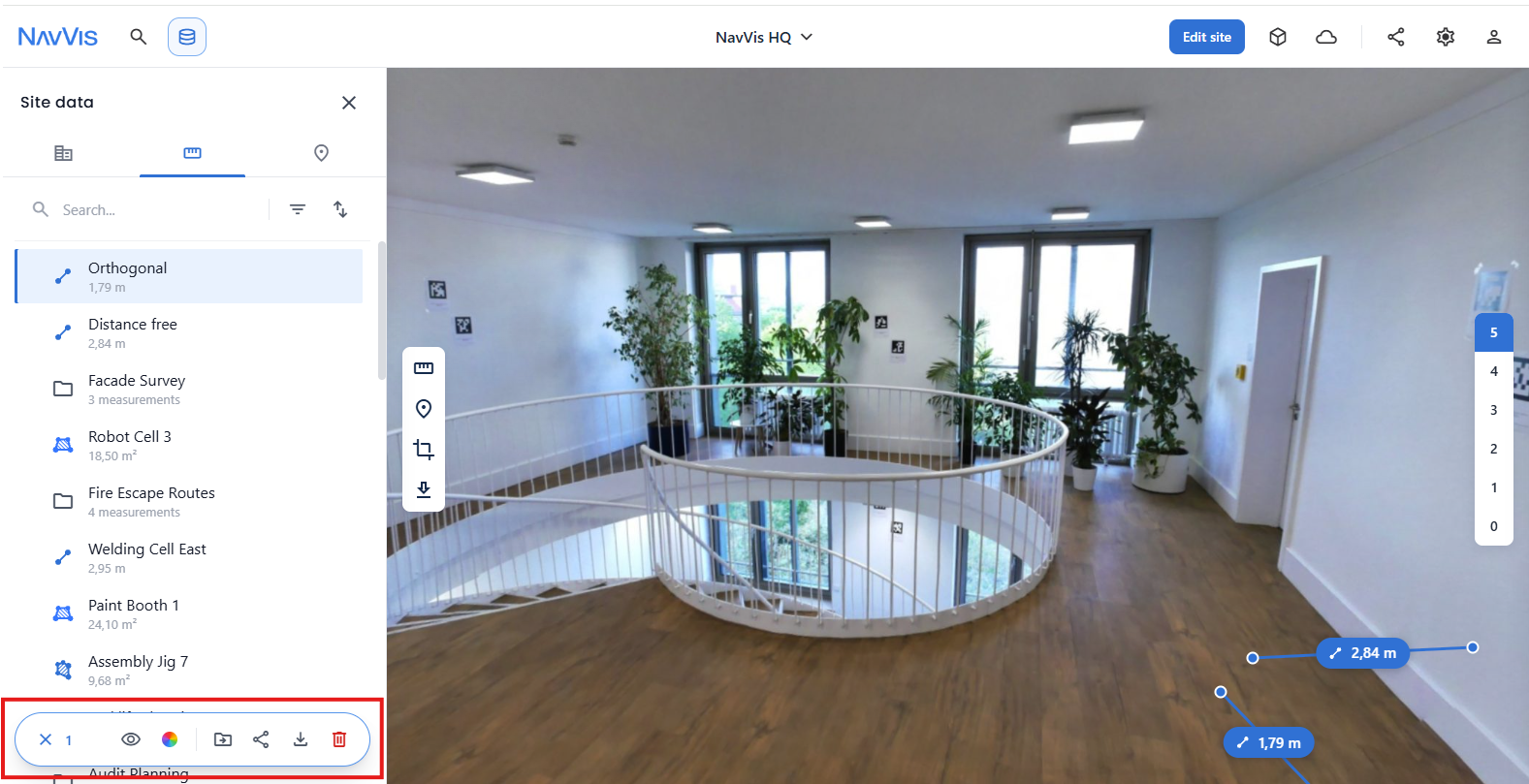
Action bar: Click an item in a list to show the available actions at the bottom of the panel. For more information, see Use the action bar.
Sort the Site structure list
Select Sort A-Z or Sort Z-A to change the list order.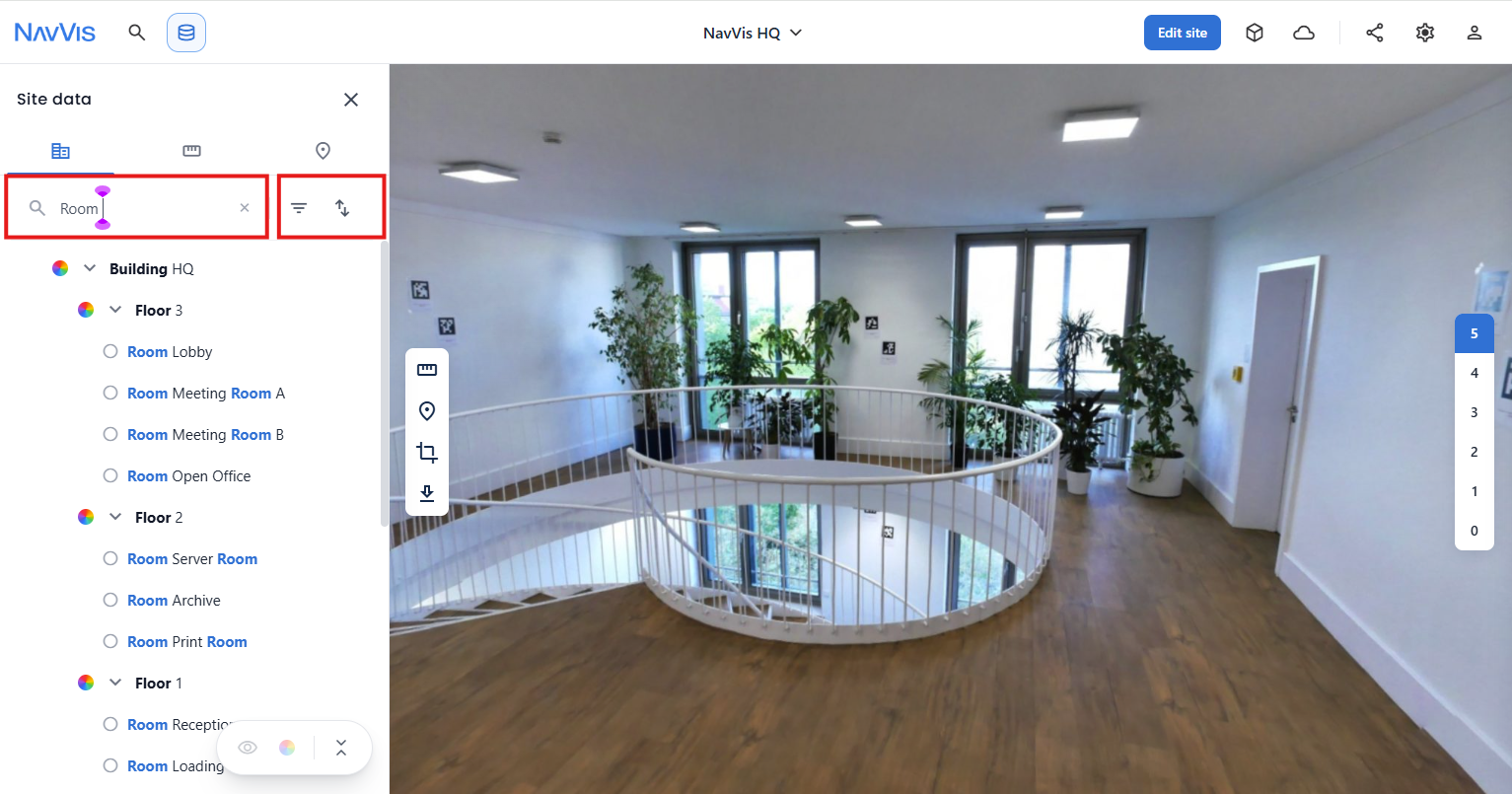
Filter the Site structure list
In the Site structure tab, click the Filter button.
Under Show in list, select the item type.
Use All, Site entities, Datasets, Models, or 360° Datasets to choose what appears. Switch on Currently in view to show datasets according to the current camera position, viewing direction, and site model.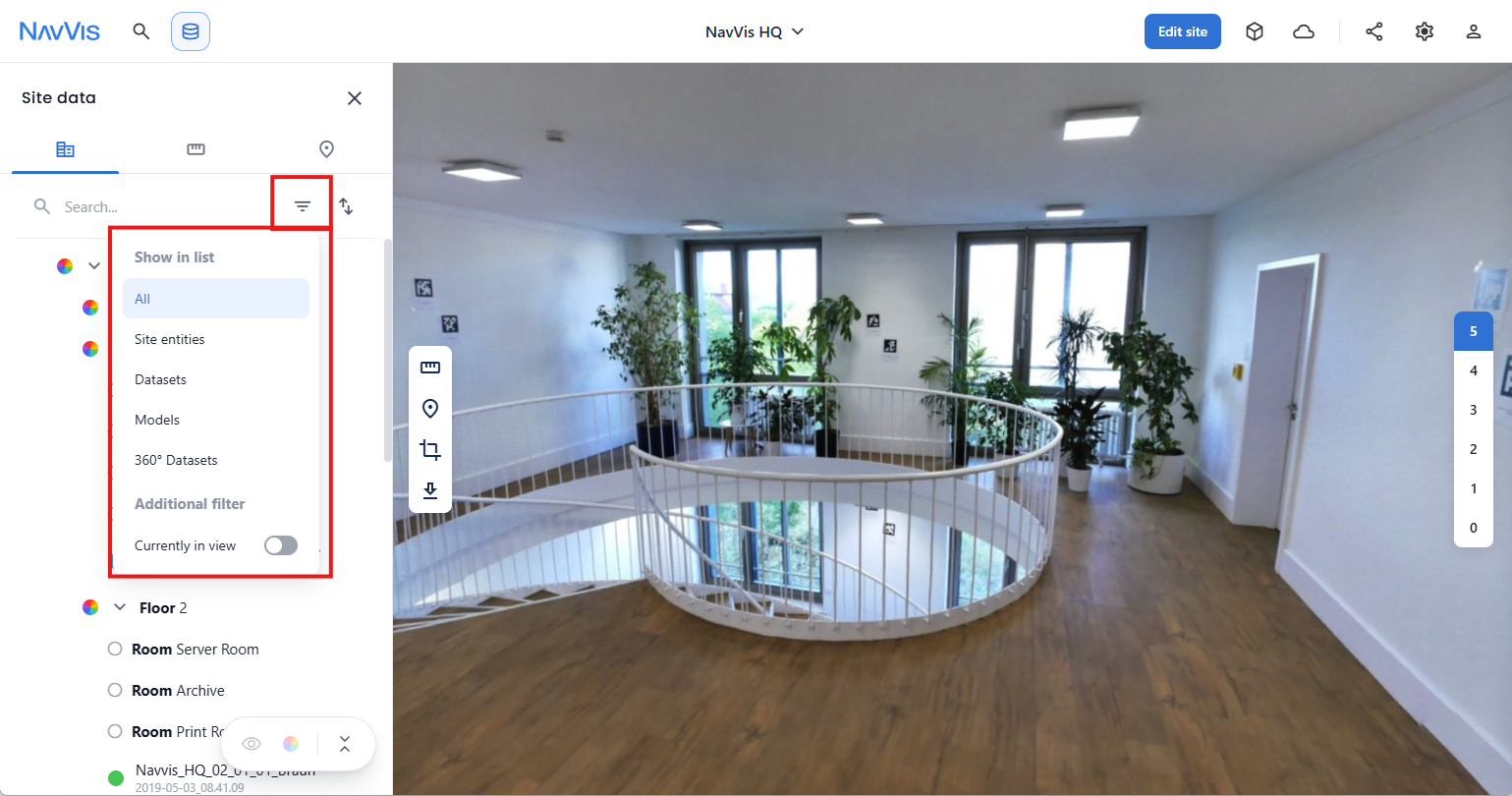
Show or hide a dataset
Switch to point clouds in the 3D view.
Find the dataset in Site structure.
Click its Hide or Show icon.
Showing or hiding a dataset also shows or hides its associated point cloud.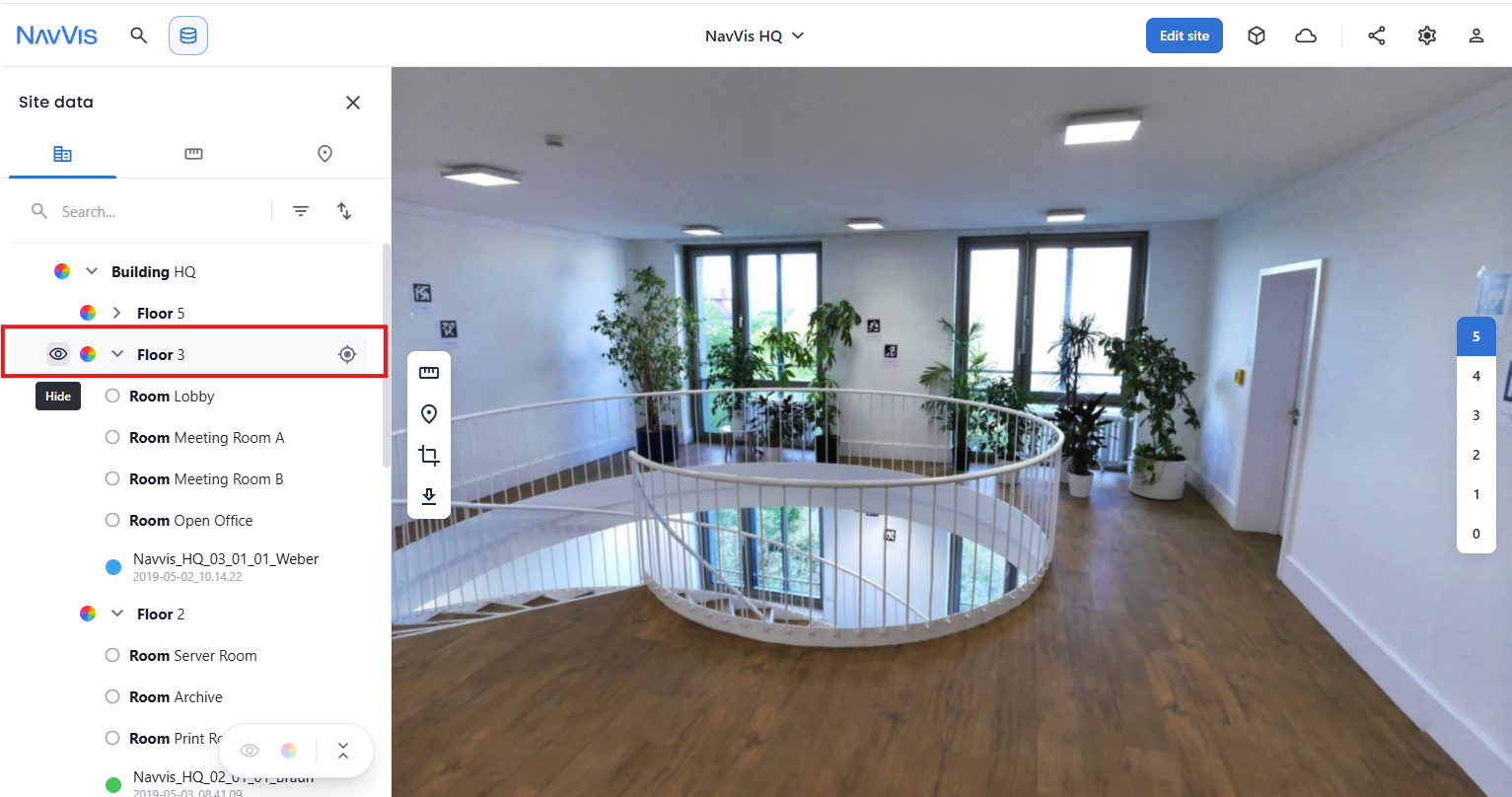
Use the action bar
Click an item in a Site data list to select it. The action bar at the bottom of the panel shows the available actions. Actions depend on the tab, the selected items, and your permissions.
Visibility: Show or hide the selected items.
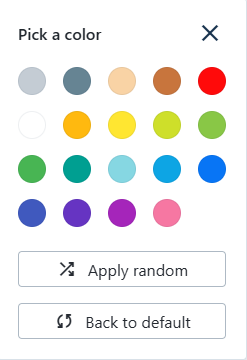
Color: In Site structure and Measurements, select a color for the selected items. In Measurements, you can also use the following buttons:
Click the Apply random button to apply distinct colors.
Click the Back to default button to restore the default color scheme.
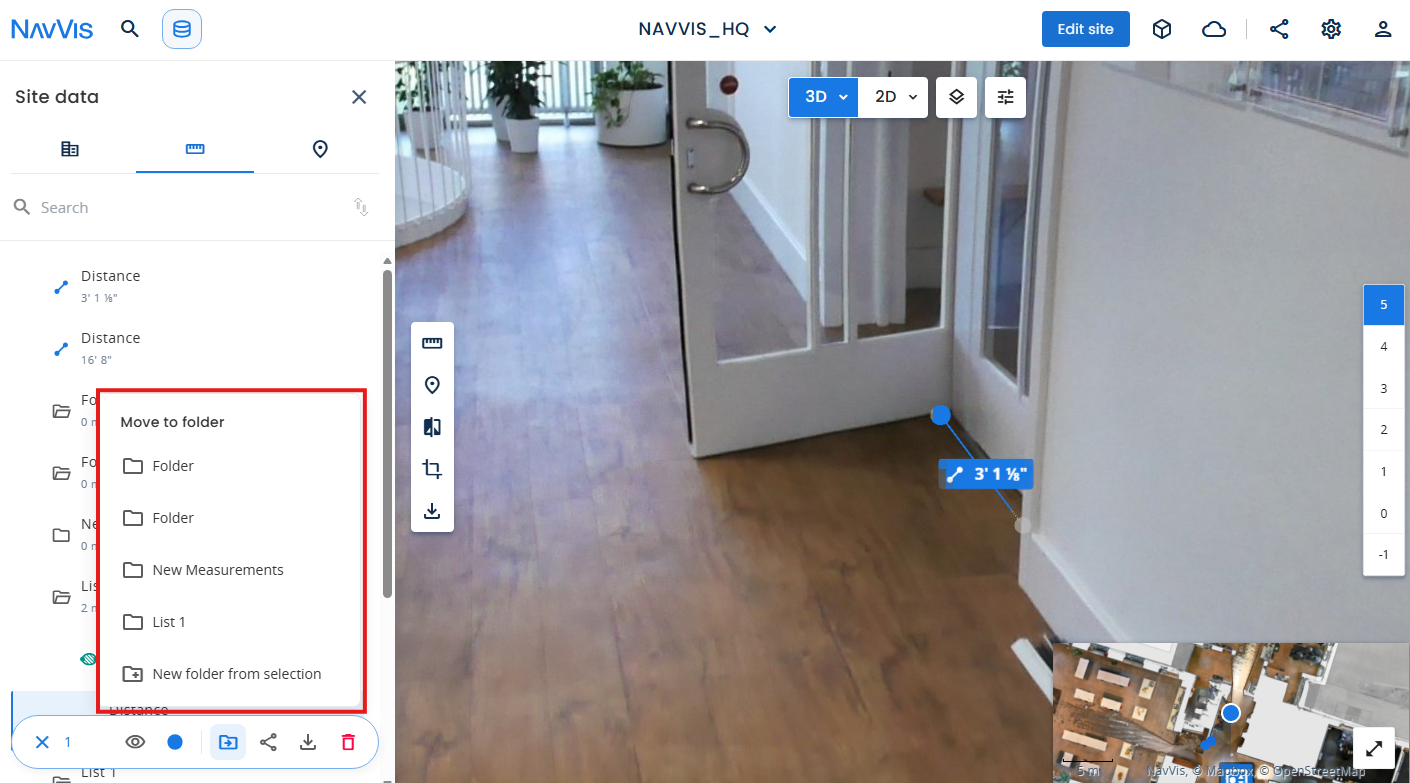
Folders: Organize items into folders where this option is available.
In Measurements, click New folder when no items are selected to create a folder.
Click the items you want to move. Select the destination folder.
Share: Share the selected items.
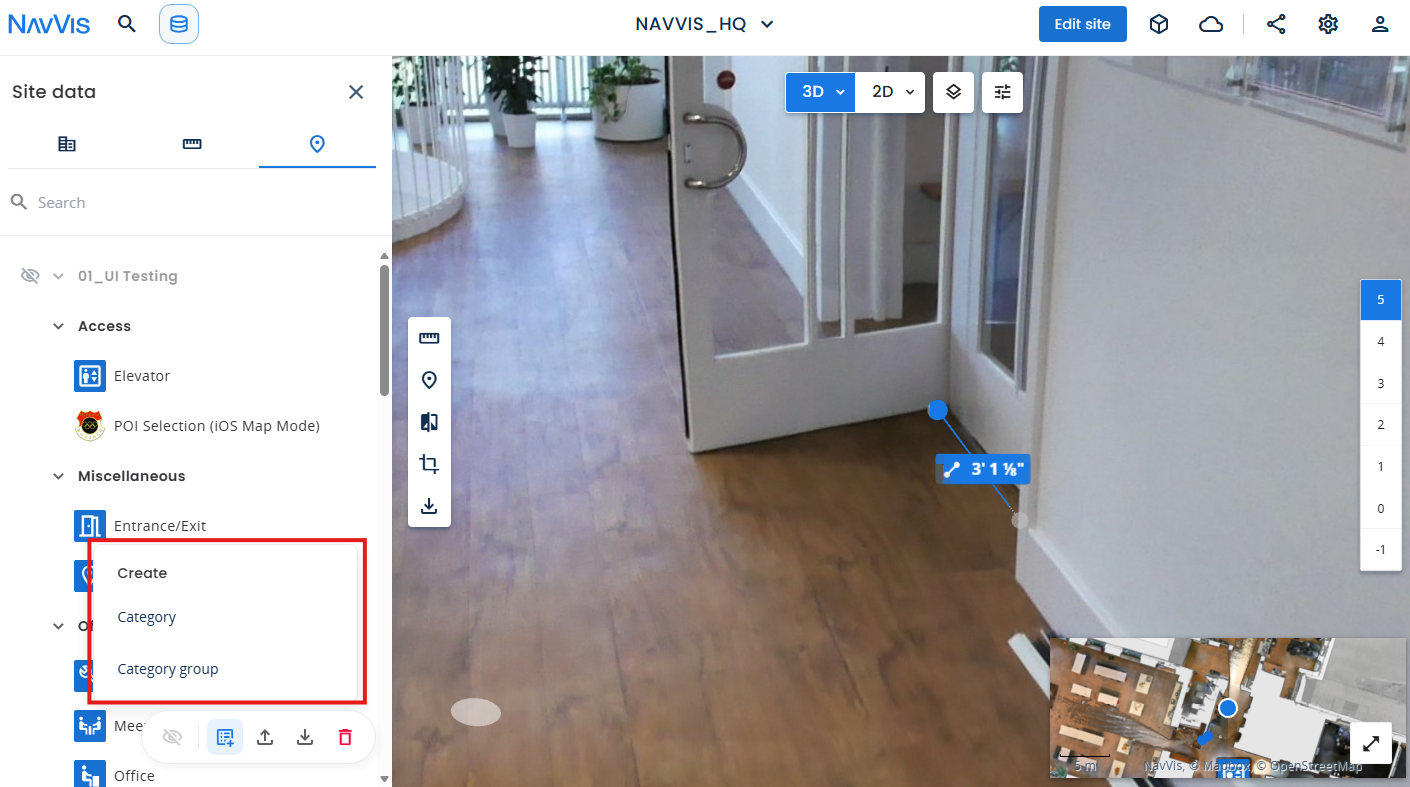
Create: In the POIs tab, create a category or category group.
Export: Export a measurement or POI.
Import: Import a POI into the site.
Delete: Remove the selected items from your instance.