Once you have created a processing task, it will be listed on the Processing Task page with the following information:
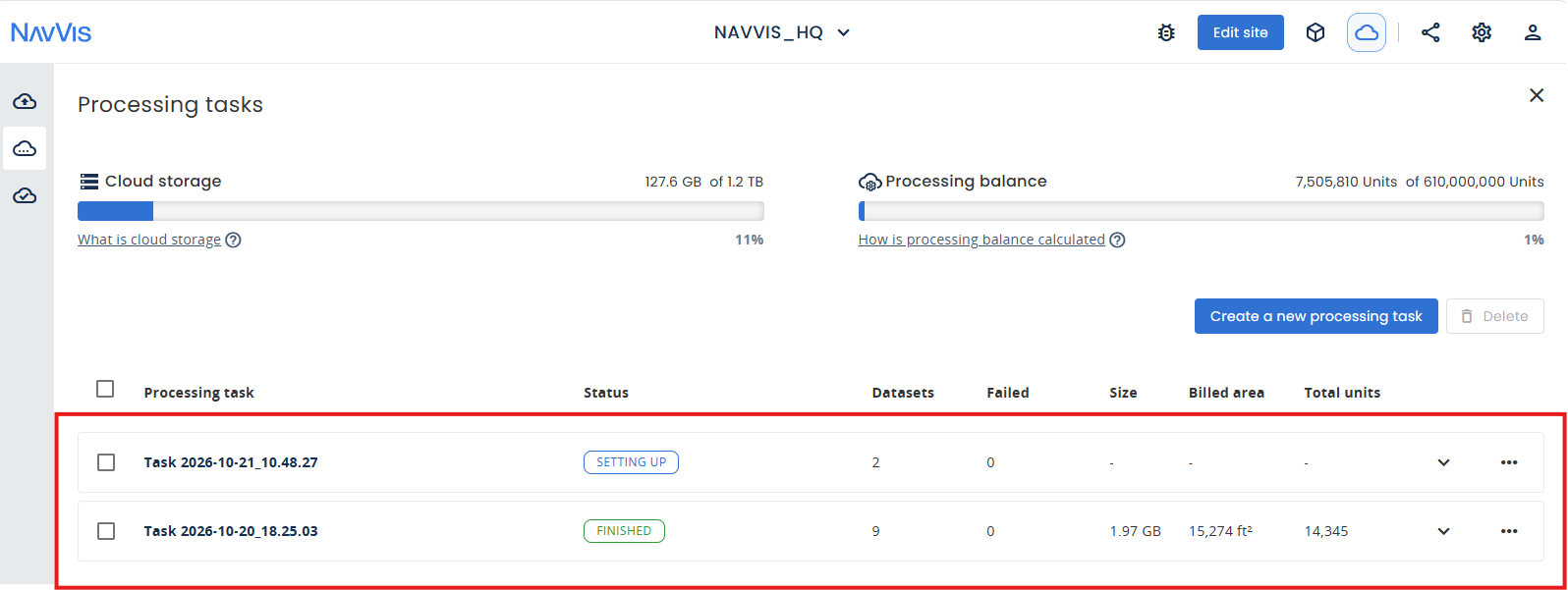
Name of the processing task
Status (Setting up, Processing, Finished etc)
Number of datasets included in the processing task.
Number of datasets for which processing has failed.
Size in GB.
Billing area
Units consumed for all datasets within the processing task.
Processing task actions
Click the three dots on the corresponding processing task to view available actions:
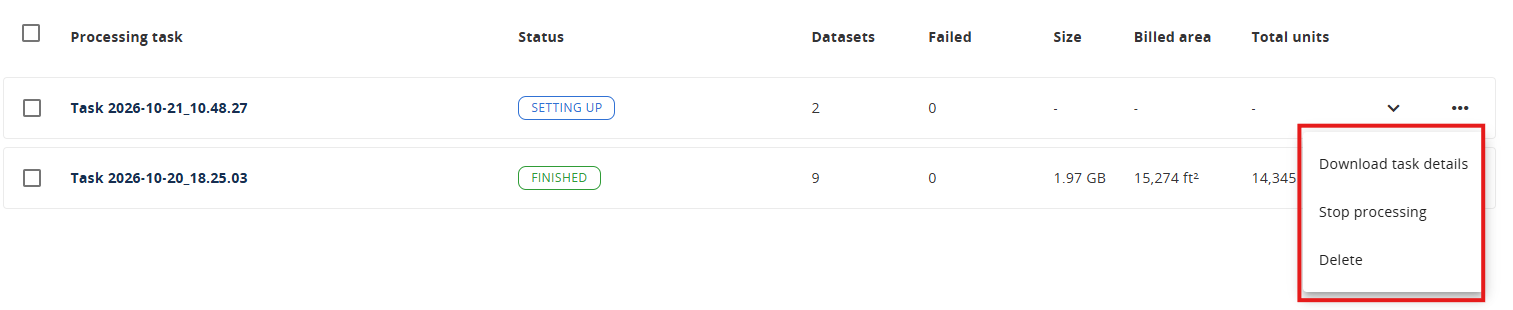
Download task details: Downloads a JSON file of the details of the processing. For example, this can be used for remote troubleshooting by NavVis Support.
Stop processing: The Dataset(s) in the processing task will be canceled and this cannot be undone.
Delete: This will delete the processing task.
Expanded Processing Task Information
Click the small down arrow to expand the row.

More information is displayed about each of the datasets included in the processing task. If a dataset has been cropped it is marked CROPPED and the details of the cropping are shown in the column.
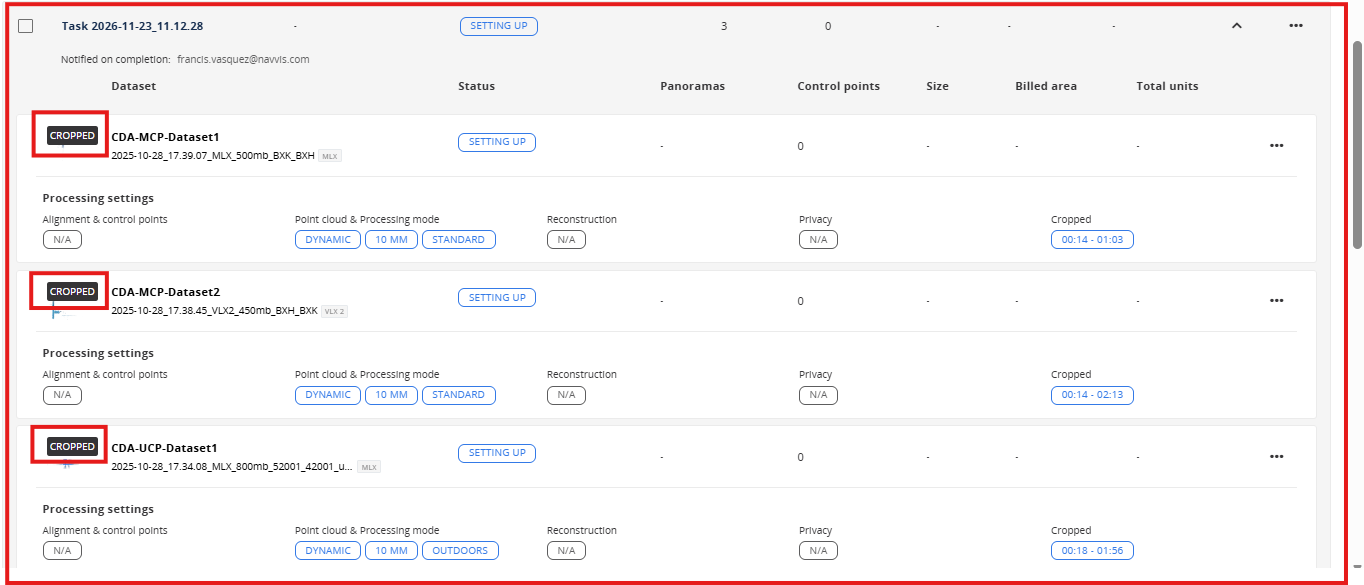
For each dataset the following information is displayed

Name of dataset
The quality map for the dataset.
The processing settings:
Alignment & control points (CDA)
Point cloud & Processing modes
Reconstruction (Gaussian splatting)
Privacy (Blurring)
The Status of the individual datasets:
Finished (in green): The processing task has completed successfully. The amount shown in the Units Consumed field will be deducted from your processing units balance.
Failed (in red): The processing task has failed. This could be caused by data incompleteness or an issue with the processing software. The Units Consumed field will be empty and no units will be subtracted from your processing units balance.
Canceled: You have canceled the processing task. The Units Consumed field will be empty and no units will be subtracted from your processing units balance.
Finished (in yellow): Processing is complete, but some control points have large residuals. Click View control point configuration to see which control points have large residuals. For more information, see IVION Processing Job Failure Troubleshooting Guide.
The number of panoramas captured.
The number of control points captured.
Billed area: The area used to calculate processing unit consumption. This value is displayed after processing is complete.
Total Units:
Unit consumption depends on the device and processing mode. For more information, see Settings configuration.
Note: Unit consumption applies at dataset level. No additional units will be charged for aligning datasets with CDA.
FAQ
What information is shown on the Processing Task page?
The Processing Task page shows the task name, status, number of included datasets, number of failed datasets, size in gigabytes, billing area, and total units consumed.
What actions are available for a processing task?
Click the three-dot menu for a processing task to download task details, stop processing, or delete the task.
Can a stopped processing task be restarted?
No. Stopping processing cancels the datasets in the task, and this action cannot be undone.
What happens when I download task details?
A JSON file containing processing details is downloaded. This file can be used by NavVis Support for remote troubleshooting.
How can I view information about individual datasets?
Click the small down arrow next to a processing task to expand the row. Additional information about each included dataset will then be displayed.
What dataset details are displayed in an expanded processing task?
The expanded view shows the dataset name, quality map, processing settings, status, number of panoramas, number of control points, billed area, and total units.
What do the different dataset processing statuses mean?
Finished in green means processing completed successfully. Failed in red means processing failed, possibly because of incomplete data or a software issue. Canceled means the task was canceled by the user. Finished in yellow means processing completed, but some control points have large residuals.
Are processing units charged for failed or canceled datasets?
No. Failed and canceled datasets have an empty Units Consumed field, and no units are deducted from the processing units balance.
What does the CROPPED label mean?
The CROPPED label indicates that a dataset has been cropped. Details about the cropping are shown in the corresponding column.
How are processing units calculated?
Unit consumption depends on the device and processing mode and is applied at the dataset level. The billed area is used to calculate consumption. No additional units are charged for aligning datasets with CDA.