Introduction
Use this guide when you want to add a simple 3D object to an IVION site to check space, fit, or clearance. You need an IVION user group account with the Create measurement and objects and Save measurements and objects permissions. Follow this procedure to insert a box, cylinder, or sphere and adjust it in the scene.
Prerequisites
Open the site in IVION.
Open a 3D view (point cloud or panorama) or the 2D map view.
Make sure your user group has the Use measurement tool and Save measurements permissions.
Insert an object in a 3D view
Click the Mark & Measure icon in the toolbar.
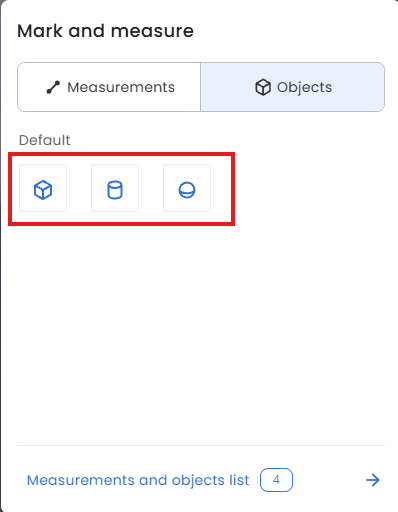
In the Objects section, select Box, Cylinder, or Sphere.
Move the pointer over the scan area. IVION shows a transparent blue preview of the object at the cursor position.
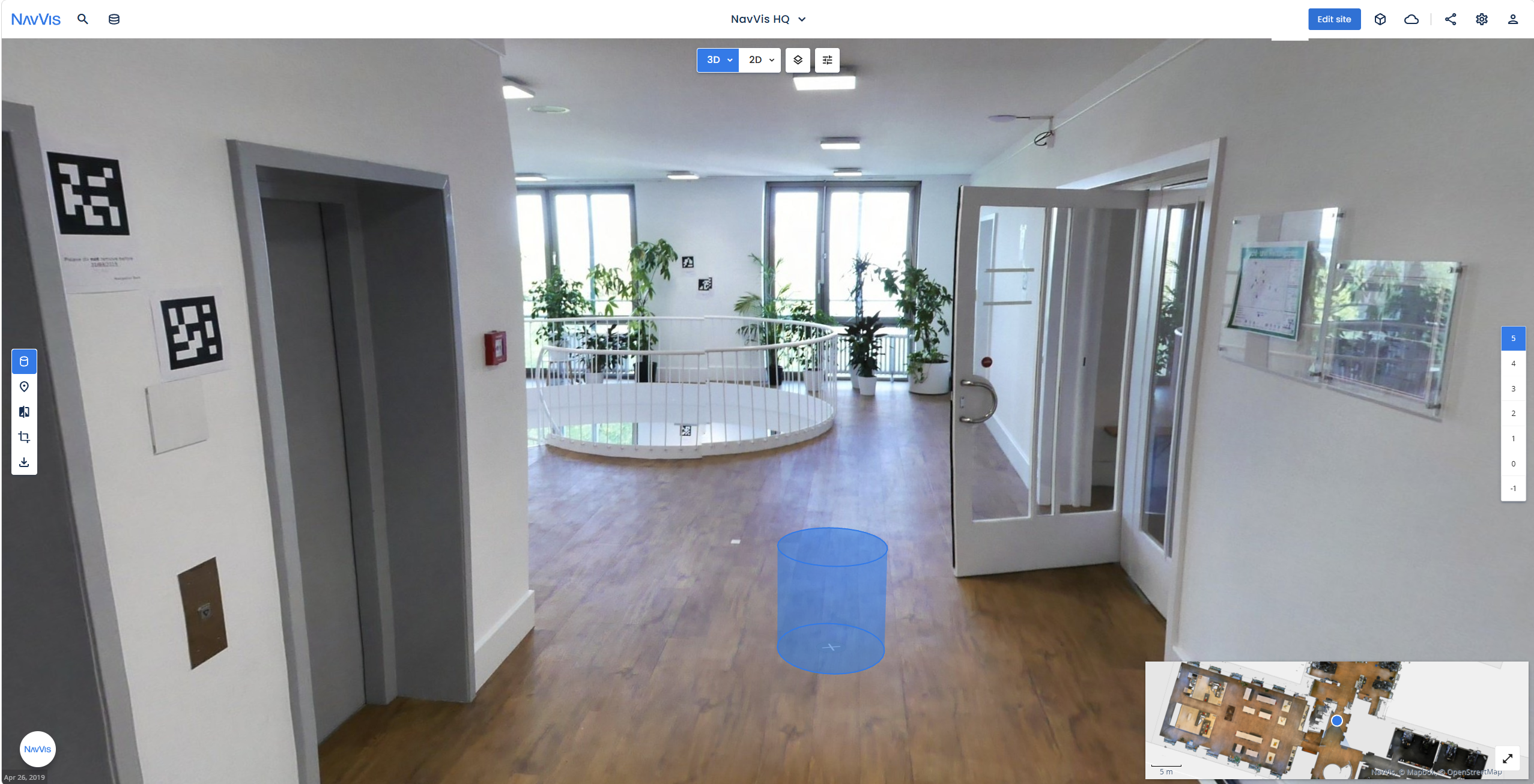
Move the pointer to the position where you want to place the object. The preview snaps to the floor height.
Check the preview color. If the preview turns red, it overlaps an existing object and IVION cannot place it there.
Click to place the object. IVION places the object, exits placement mode, and selects the new object.
Insert an object in the 2D map view
Click the Mark & Measure icon in the toolbar.
In the Objects section, select Box, Cylinder, or Sphere.
Move the pointer over the 2D map. IVION shows the object preview as a top-down footprint.
Move the footprint to the position where you want to place the object.
Check the preview color. If the preview turns red, it overlaps an existing object and IVION cannot place it there.
Click to place the object. IVION places the object at a default height of 1.5 m above the site's floor reference and selects the new object.
Move and adjust a placed object
Click the object in the scene, or open Site data and select the object from the Measurment and objects list.
Use the transform controls to move, resize and rotate the object.
Use the bottom toolbar to change the object color, width, depth, height, or rotation.
Toggle Objects to show or hide all placed objects on the site.
Press Esc to cancel an active placement or move action.
Hide or show Objects on or off to show or hide all placed objects in the site.
If an object overlaps with another placed object while you insert or move it, the object snaps back to its previous position.
For more information, see Mark and Measure.