Use this guide when you need to measure distances, areas, or positions in IVION. Choose a measurement mode and tool, then place points in the view.
Open the measurement tools
Click the Mark and measure button in the toolbar.
Click Measurements.
There are three modes of measurement Free, Horizontal, or Vertical.
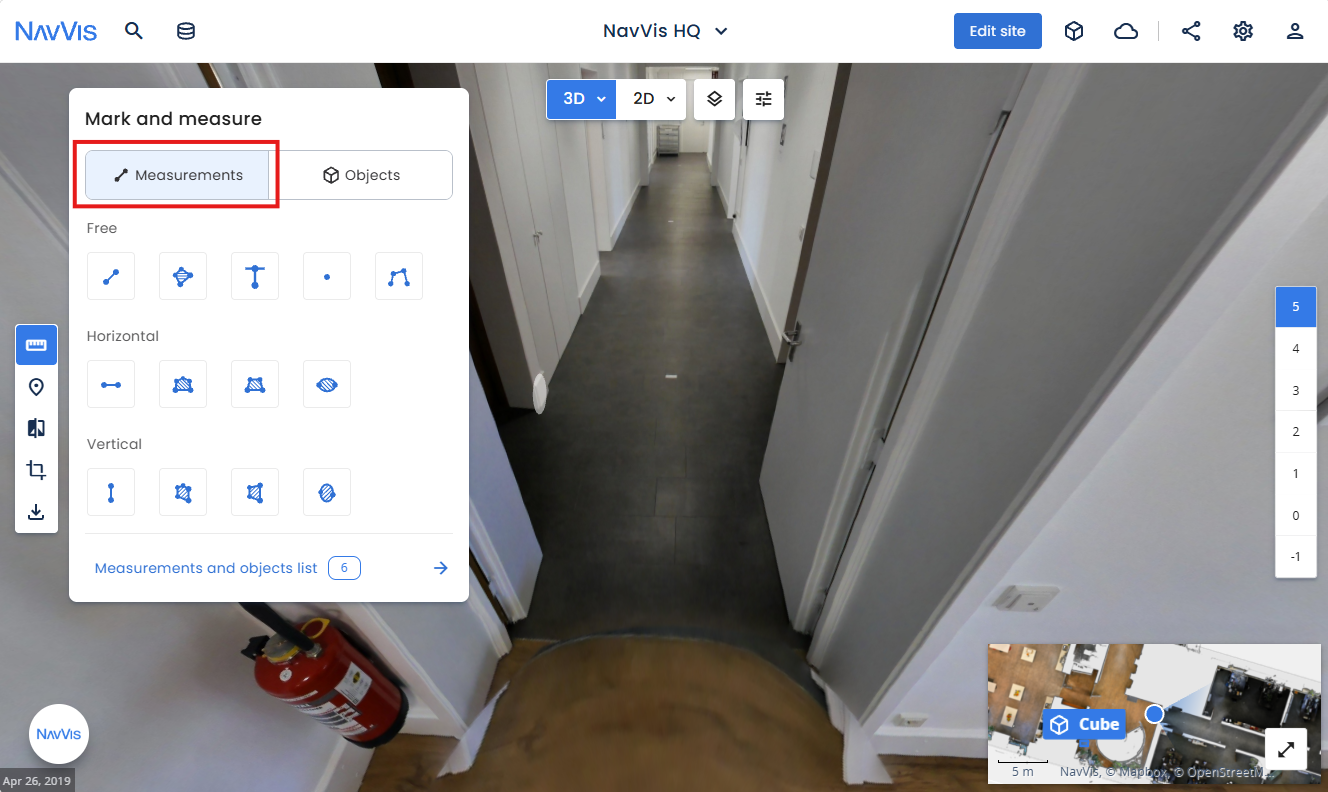
Click the mode and the measurement tool you need.
Mode | Measurement |
|---|---|
Free | Distance, Polygon, Orthogonal, Point, Polyline |
Horizontal | Distance, Polygon, Rectangle, Circle |
Vertical | Distance, Polygon, Rectangle, Circle |
Click in the view to place the measurement points.
Measurement planes for polygon, rectangle, and circle measurements
Polygon, rectangle, and circle measurements are taken on a single plane. The number of points needed to define the plane depends on the mode:
Free polygon: three points.
Horizontal polygon: one point.
Vertical polygon: two points.
Horizontal or vertical rectangle: two points.
Horizontal or vertical circle: two points.
Once the plane is defined, a blue line shows the projection of the cursor onto that plane. This projection is used as a point in the measurement.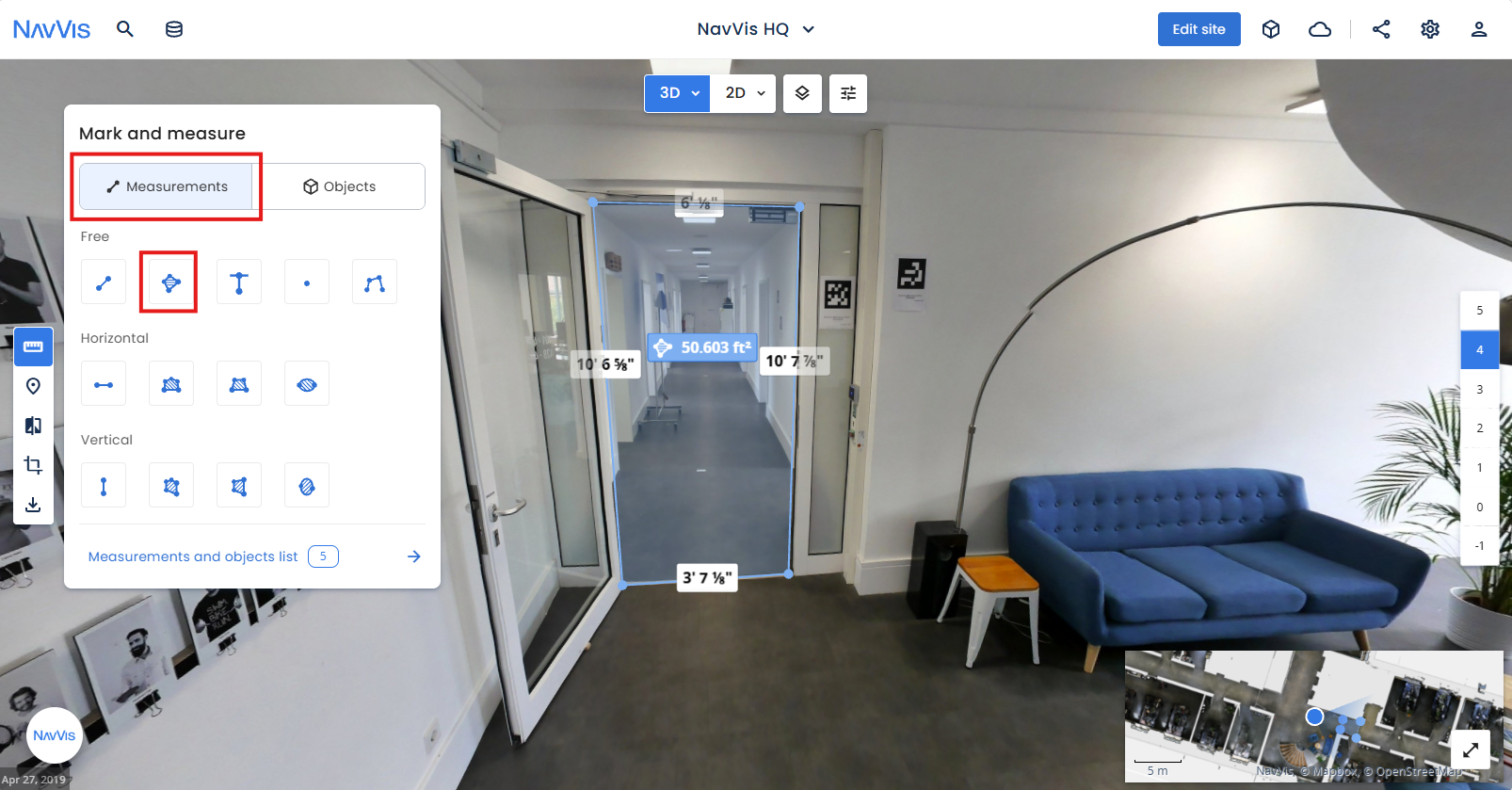
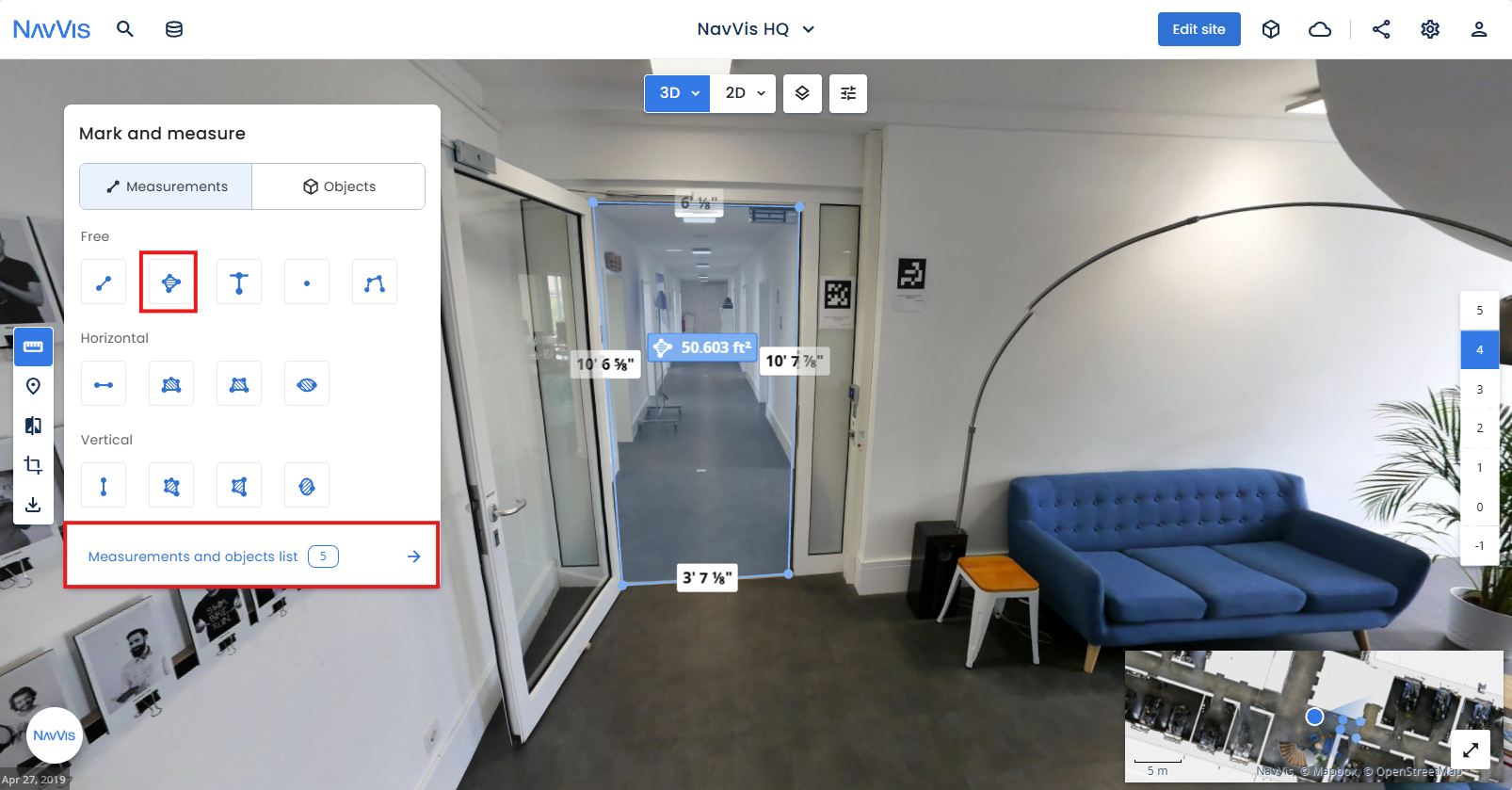
To change setting of the measurement click Measurements and objects list.
Take a free measurement
Select Free, then Distance, Polygon, Orthogonal, Point, or Polyline.
Left-click in the 3D view to place the start point. A blue line follows your cursor and shows the distance.
Complete the measurement:
Distance or Orthogonal: left-click the end point.
Polygon: return the cursor to the start point and left-click.
Point: left-click once.
Polyline: press Enter.
Note: To adjust a completed measurement, click one of its points and drag it to the location you want.
Take a horizontal or vertical measurement
Select Horizontal or Vertical, then Distance, Polygon, Rectangle, or Circle.
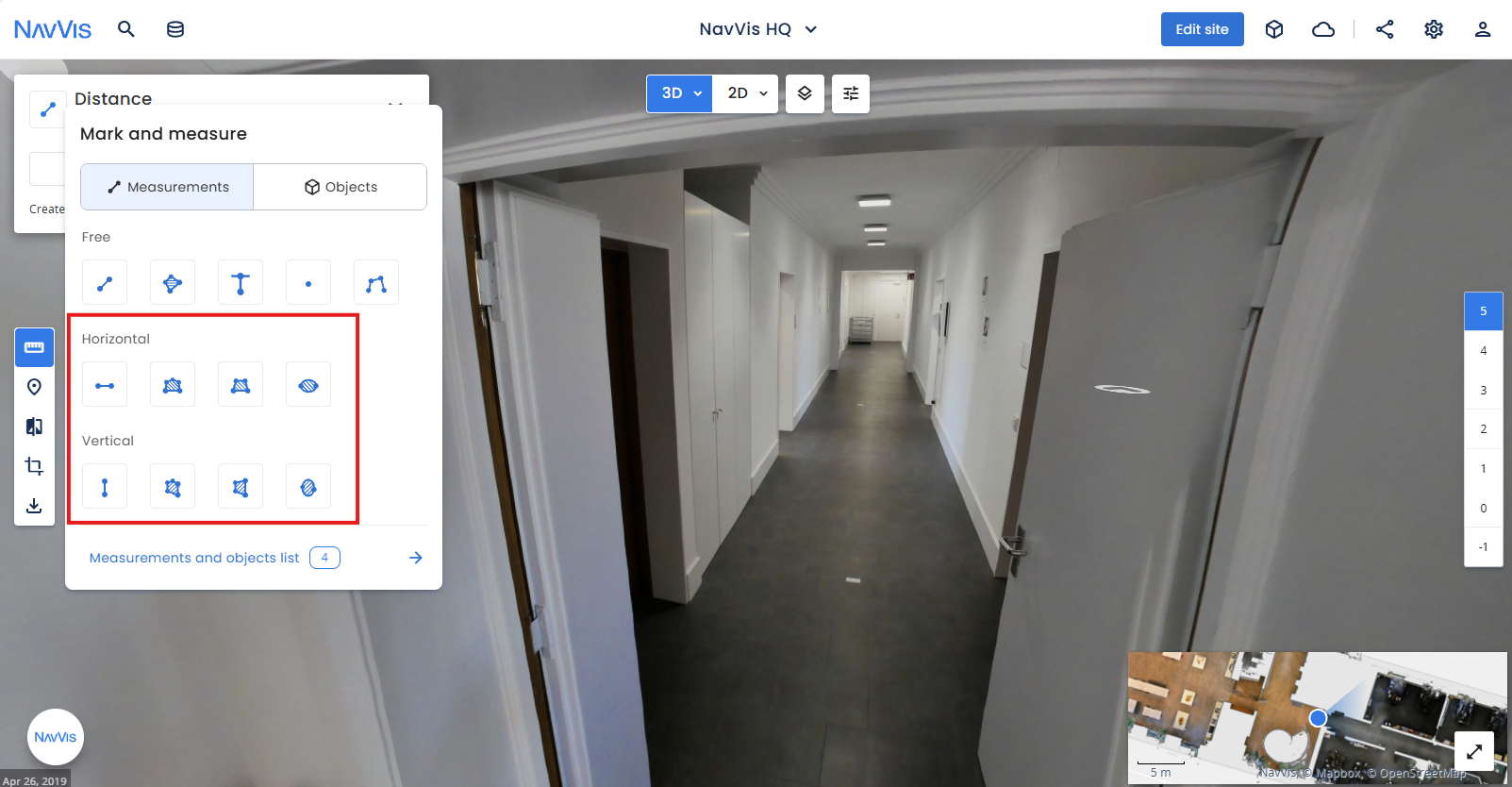
Left-click to place points. A blue line follows your cursor. For a rectangle, two parallel blue lines appear once you have placed the first two points.
Use the magnifier
The magnifier improves point-placement accuracy and works in the panorama view only.
Select a measurement mode.
In Scene Settings at the top of the screen, turn on or off Magnifier.
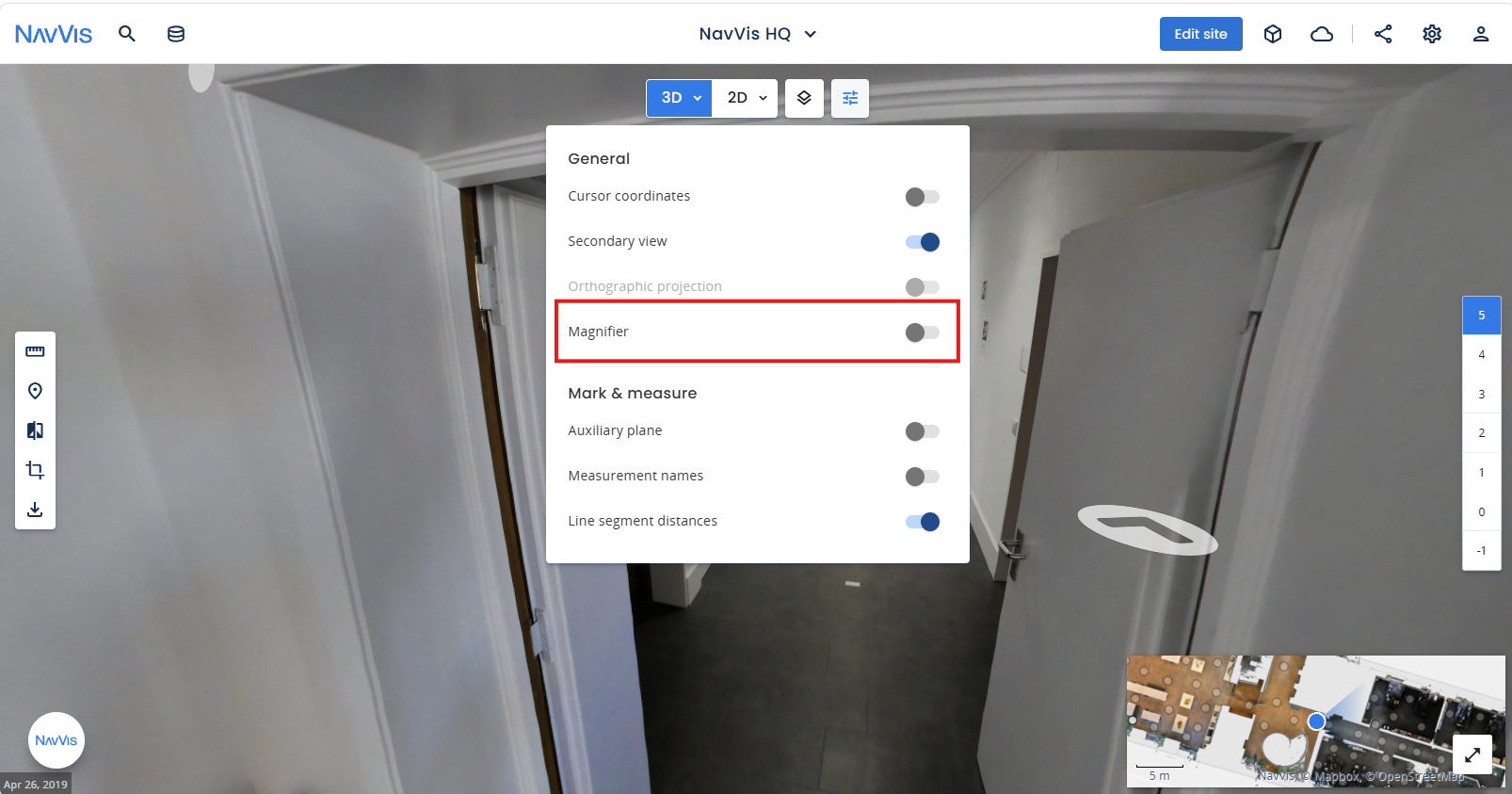
Place the start point,
Move the pointer to position the next point.
The magnifier zooms in as you position each point.
Mark and Measure Settings
In the Mark & Measure panel, click the Settings icon to turn these options on or off:
General
Magnifier: zoom in to place points more accurately (panorama view only).
Mark & measure
Auxiliary plane: show a fixed geometric reference for a surface area.
Measurement names: show the name of each measurement.
Line segment distances: show side (segment) measurements.
Permissions
Mark & Measure is available to Editors, Site Admins, and Global Admins by default. To grant access to another group (including the Everyone group for guest users), a Global Admin or Site Admin enables the Use measurement tool permission for that group under User Management > Groups. To let a group save measurements, enable the Save measurements role.
Keyboard shortcuts
Place the cursor over a measurement tool to see its name and keyboard shortcut. Press the shortcut key to activate the tool while exploring the site.
Press Esc to exit the active creation tool.
Press ? to open the keyboard shortcuts overview in IVION.
Key | Action |
|---|---|
Backspace | Remove last point |
Esc | Cancel measurement; deselect measurement tool |
1 | Free distance measurement (press repeatedly to cycle through all distance modes) |
2 | Free polygon measurement (press repeatedly to cycle through all polygon modes) |
3 | Rectangle measurement (press repeatedly to cycle through all rectangle modes) |
4 | Orthogonal measurement |
5 | Point measurement |
6 | Polyline measurement |
Shift + 1 | Horizontal distance measurement |
Shift + 2 | Horizontal polygon measurement |
Shift + 3 | Horizontal rectangle measurement |
Shift + 4 | Horizontal circle measurement |
Alt/Option + 1 | Vertical distance measurement |
Alt/Option + 2 | Vertical polygon measurement |
Alt/Option + 3 | Vertical rectangle measurement |
Alt/Option + 4 | Vertical circle measurement |
Return | End area measurement |
Ctrl + C | Copy measurement |
Ctrl + V | Paste measurement |